Rucodara Google Slide Template: A Practical Overview
If you have ever spent hours tweaking slide layouts, resizing images, or trying to match colors across a presentation, you already know how quickly that process can drain your energy. Presentation templates exist to solve exactly that problem, and the Rucodara Google Slide Template is a solid option worth examining. Whether you are pitching to clients, teaching a class, or building a portfolio, having a flexible, well-designed template can save time and improve the final result.
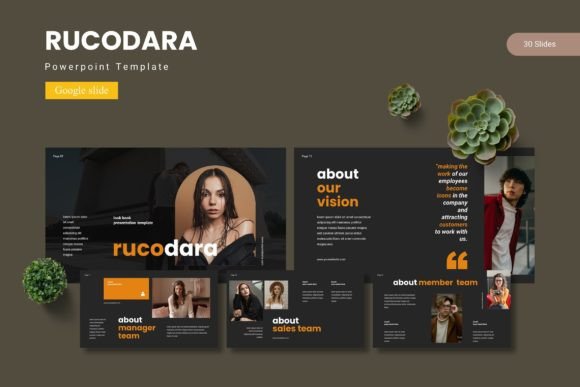
This template offers 150 total slides across five premade color schemes, with 30 slides per variation. It also includes section break slides, handcrafted infographics, and pixel-perfect illustrations that remain editable. Below, we will walk through its key characteristics, discuss practical applications for different users, and offer realistic recommendations based on how this template performs in everyday use.
What Makes the Rucodara Template Stand Out
The first thing you notice when opening the Rucodara Google Slide Template is the sheer volume of content. Having 150 slides at your disposal means you rarely need to create a new layout from scratch. Each of the five color schemes contains 30 slides, which is enough to cover almost any presentation structure you can think of: title slides, agenda pages, data charts, team introductions, timeline views, portfolio galleries, and closing slides.
A few specific features deserve attention:
- Master Slides foundation. Everything is built on Master Slides, which means you can edit global elements like fonts, colors, and background elements in one place, and the changes apply across the entire deck. This is a massive time-saver if you have ever manually updated each slide one by one.
- Picture placeholders with drag-and-drop support. Instead of cropping and resizing images manually, you simply drop your photos into the placeholder frames. The template handles the alignment and scaling automatically.
- Handcrafted infographics. The infographic elements are not generic clip art. They are designed to be resizable and editable, so you can adjust data points, labels, and icons to match your specific information without losing visual quality.
- Section break slides. These are often overlooked in other templates, but having dedicated transition slides helps maintain flow and gives your audience natural pauses between major topics.
- Gallery and portfolio slides. For designers, photographers, or anyone showcasing visual work, these slides provide clean, grid-based layouts that present images without clutter.
All graphic elements are resizable and editable, which is important if you need to tweak colors, adjust proportions, or add your own branding elements. The template also includes a separate folder with Google Slides files, a readme file, font information, and photo credits, so you are not left guessing where everything is located.
Who Benefits Most from the Rucodara Template
Because the template offers five distinct color variations, it works well across different industries and personal styles. Let us look at the groups that tend to get the most value from this kind of resource.
Business Owners and Entrepreneurs
If you are pitching to investors, presenting quarterly results, or onboarding new team members, the Rucodara Google Slide Template gives you a professional look without requiring design skills. The infographic slides are particularly useful for presenting revenue charts, market analysis, or growth metrics. You can choose a color scheme that matches your brand guidelines and keep the deck consistent across every slide.
Educators and Trainers
Teaching materials benefit from clear, structured layouts. The section break slides help you divide lectures into modules, and the editable infographics allow you to simplify complex concepts. Whether you are creating course slides for a university class or training materials for corporate workshops, having 30 slides per color scheme means you can build entire lesson plans without running out of page variations.
Creative Professionals and Freelancers
Portfolio presentations are a staple for designers, photographers, writers, and artists. The gallery and portfolio slides in this template let you showcase your work in a clean, grid-based format. Because the images use placeholder frames, you can swap out your projects quickly when updating your portfolio. The pixel-perfect illustrations also add a polished touch without distracting from your actual work.
Marketers and Content Publishers
Webinars, client proposals, and social media strategy decks all require a mix of text-heavy slides and visual data. The Rucodara Google Slide Template provides enough variety to handle both. You can use the text-focused layouts for case studies or copy-heavy slides, then switch to infographic or chart slides for metrics and results. The five color schemes also allow you to create different decks for different clients while maintaining a consistent base structure.
Practical Use Cases and Real-World Applications
Let us move beyond feature lists and talk about how this template actually performs in everyday situations. Below are a few realistic scenarios where the template shines.
Scenario 1: A startup founder preparing a pitch deck. You have a week before the investor meeting. You open the template, choose the color scheme that aligns with your brand, and start filling in the title slide, problem statement, solution overview, market size, business model, and team slides. The section break slides help you separate each segment clearly. Because the infographics are editable, you adjust a bar chart to show your projected growth without needing external design tools. The final deck looks cohesive and professional, and you built it in under two hours.
Scenario 2: A high school teacher designing a semester-long course. You need about 12 modules with roughly 10 slides each. Using the Rucodara Google Slide Template, you assign one color scheme to each module. The Master Slides feature lets you set your font and heading styles once, and every module inherits that formatting. You use the bullet point slides for lecture notes, the infographic slides for diagrams, and the section breaks to mark the start of each new module. By the end of the week, you have a full course deck that is consistent and easy to navigate.
Scenario 3: A freelance graphic designer updating their portfolio. You usually send PDFs, but a potential client requested a live presentation. You open the template, use the portfolio and gallery slides, and drag your latest projects into the picture placeholders. The clean layout ensures your work takes center stage. You add a few text slides to describe your process and services. The entire presentation is ready in 30 minutes.
Scenario 4: A marketing manager creating a quarterly strategy deck. You have to present performance data, campaign results, and next-quarter goals to the leadership team. The infographic slides allow you to visualize metrics like conversion rates, ad spend, and audience growth. The agenda slide at the beginning sets expectations, and the closing slide summarizes key takeaways. Because the template is built for Google Slides, you can collaborate with your team in real time without version control issues.
Key Considerations When Using the Rucodara Template
No template is perfect for every situation, and it helps to go in with realistic expectations. Here are a few practical points to keep in mind.
- Customization still requires effort. The template provides a strong foundation, but you will need to replace placeholder text, images, and data with your own content. Do not expect a fully finished presentation right out of the box. Plan for at least a few hours of editing to tailor it to your specific needs.
- Font and photo information is included. The readme file contains details about the fonts used and photo credits. Make sure you review this file before distributing the presentation, especially if you are using it for commercial purposes. Some fonts may require licensing, and the included photos are for demonstration purposes only.
- Master Slides are your best friend. If you want to change the color scheme or font globally, use the Master Slide view. Editing individual slides one by one defeats the purpose of a template. Learn how Master Slides work in Google Slides before diving in, and you will save yourself a lot of repetitive work.
- The template is optimized for Google Slides. The main file is provided in PPTX format as well, but the template is designed with Google Slides in mind. If you primarily use PowerPoint, test the template in that environment first to ensure all elements carry over correctly. Some features like drag-and-drop picture placeholders may behave differently in PowerPoint.
- Choose your color variation carefully. The five color schemes cover different moods and industries. If you are in finance, a conservative blue or gray scheme may work better. If you are in creative services, a warmer or more vibrant scheme could be appropriate. The template folder includes all five, so take time to preview each one before committing to a full deck build.
How the Template Improves Workflow and Communication
One of the biggest benefits of using a structured template like Rucodara is the mental overhead it removes. Instead of deciding margins, font sizes, and image placement for every slide, you can focus on your message. The consistent layouts also help your audience follow along more easily because they do not have to adjust to new visual structures every few slides.
From a productivity standpoint, the drag-and-drop image placeholders and editable infographics reduce the time spent on formatting. If you frequently create presentations for different topics or clients, having a library of prebuilt slide types means you can repurpose decks quickly. The section break slides also provide a natural rhythm that keeps your audience engaged without feeling overwhelmed by nonstop content.
For branding purposes, the five color schemes allow you to maintain brand consistency across multiple presentations. You can assign a specific scheme to a particular product line, department, or campaign, and the audience will start associating that color palette with that category. Over time, this builds visual recognition and professionalism.
Final Recommendations
If you regularly create presentations and value consistency, the Rucodara Google Slide Template is a practical investment. It offers enough variety to cover most presentation types without overwhelming you with unnecessary options. The five color schemes give you flexibility without forcing you to design everything from scratch, and the Master Slides foundation ensures that global edits remain manageable.
That said, be prepared to invest some time upfront to customize the template to your needs. Read the included font and photo documentation, experiment with the different color variations, and familiarize yourself with how the placeholders and infographics work. The more comfortable you become with the template's structure, the faster you will be able to produce high-quality presentations.
Whether you are building a pitch deck, designing course materials, updating your portfolio, or preparing a marketing report, the Rucodara template gives you a reliable starting point. It will not write your content for you, but it will present that content in a clean, professional, and visually engaging way.