Adora Google Slide Template: Creative Presentations Made Simple
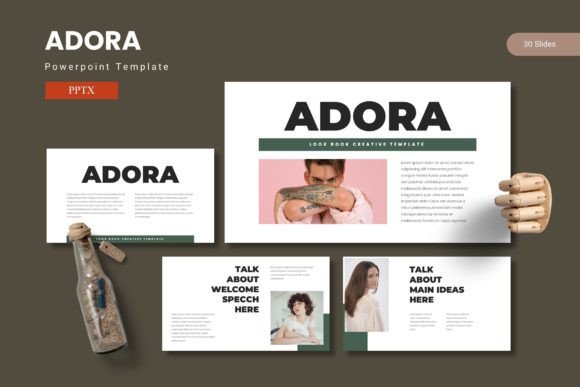
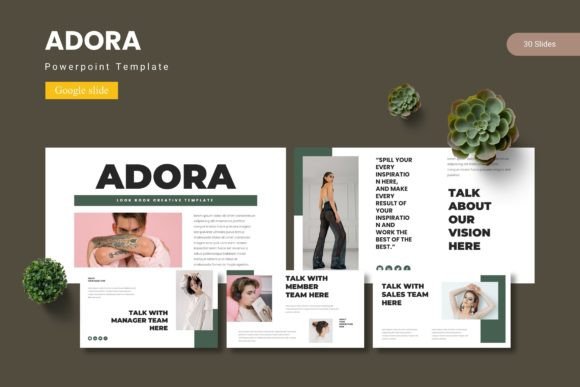
When you need to deliver a message that sticks, the visual structure of your slides matters as much as the content itself. The Adora Google Slide Template offers a complete toolkit for building presentations that feel polished, intentional, and easy to adapt. With 150 total slides spread across five premade color variations, this template gives you room to explore different visual directions without starting from scratch. Each of the five color schemes includes 30 slides, so you can maintain a consistent look throughout a full deck while still having the flexibility to switch palettes for different audiences or projects.
What makes Adora particularly useful is the way it balances structure with creative freedom. The inclusion of master slides means you can edit global elements like fonts, colors, and backgrounds in one place, and the changes apply across your entire presentation. This saves time and reduces the risk of visual inconsistencies. The handcrafted infographics and pixel-perfect illustrations are fully resizable and editable, so you can tweak them to match your specific content rather than forcing your ideas into prebuilt boxes. Picture placeholders with drag-and-drop functionality let you swap images in seconds, which is especially helpful when you are working with client assets or updating a deck for a new campaign.
Using Slide Templates for Visual Storytelling
The Adora template is built around the idea that every slide should serve the narrative. Section break slides act as natural pauses, signaling a shift in topic or tone without losing momentum. This structure helps you guide your audience through a logical flow, whether you are presenting a marketing strategy, teaching a workshop, or pitching a product to potential investors. The gallery and portfolio slides are designed to showcase visual work in a clean, distraction-free layout, making them ideal for designers, photographers, and creative agencies who need to let their projects speak for themselves.
Because the template includes 150 slides total, you have plenty of room to explore different formats within a single deck. You can mix infographic-heavy slides for data-driven sections with minimalist text slides for storytelling moments. The five color variations allow you to match the template to your brand guidelines or to the mood of the presentation. For example, a muted pastel scheme might work well for a wellness brand, while a bold, high-contrast palette could be better suited for a tech startup pitch.
Creative Possibilities for Different Audiences
Marketers and social media managers can adapt the Adora template for client proposals, campaign recaps, or editorial calendars. The infographic slides are particularly useful for presenting metrics, timelines, or comparative data in a way that is easy to scan. You can replace placeholder icons and charts with your own data, and the layout will still hold together because the template follows a consistent grid system. For bloggers and content creators, the portfolio slides offer a clean way to present case studies, before-and-after examples, or featured articles. The drag-and-drop image placeholders mean you can update your portfolio quickly as you add new work.
Educators and trainers can use the section break slides to create distinct modules within a longer presentation. This is especially helpful for workshops or online courses where you want to break content into digestible chunks. The master slides also make it easy to add consistent headers, footers, or slide numbers, which are small details that make a professional difference in educational materials. Small business owners who need to present quarterly results, new product launches, or team updates will appreciate the ready-to-use layouts that require minimal customization. You can keep the slides as-is and simply drop in your text and images, or you can dig deeper into the color schemes and typography to align the deck with your brand.
Practical Tips for Customizing Your Presentation
Start by choosing one of the five color schemes that best matches your brand or the tone you want to set. Open the master slide view and adjust the global font to something that feels readable at a distance. If your presentation will be viewed primarily on screens, consider a sans-serif font for body text. For print or high-resolution displays, you might prefer a serif font for headings. Once the global styles are set, work through the slides section by section, replacing placeholder text and images with your own content. The handcrafted infographics are one of the strongest features of this template, so take time to customize them rather than leaving them generic. Adjust the colors within the infographics to match your palette, and swap in real data points to make the visuals meaningful.
When you use the picture placeholders, make sure your images are high resolution and cropped to match the aspect ratio of the placeholder. This prevents awkward stretching or white borders. The template includes gallery and portfolio slides that assume you have strong visuals to feature, so if you are working with text-heavy content, you may want to choose other layouts that prioritize long copy. For multimedia presentations, you can add video embeds or animated elements within the existing slide structure, but be careful not to overload the deck with moving content. The strength of Adora is its clean, structured look, so let the template guide your design rather than fighting against it.
Keeping Your Slides Clear and Audience-Friendly
One of the easiest ways to lose an audience is to crowd a slide with too much information. The Adora template naturally encourages white space and visual breathing room, but it is still up to you to edit your content ruthlessly. Use the infographic slides to summarize complex ideas, and rely on the text-heavy slides only when you need to dive into detail. The section break slides are also a great place to include a single sentence or a key question that frames the next part of your talk. This keeps the audience engaged and gives them a mental hook to hold onto as you move through your points.
Consistency in slide styling is another factor that builds trust with your audience. Because the template uses master slides, you can ensure that every slide follows the same typography hierarchy, spacing, and color usage. This is especially important when multiple people are contributing to the same presentation. You can share the template with team members, and everyone will be working from the same visual foundation. The five color variations also make it easy to create distinct but related decks for different departments or client segments without reinventing the design each time.
Adapting the Template for Different Platforms and Formats
While the Adora template is designed for Google Slides, the file package includes five PPTX files that you can open in Microsoft PowerPoint or import into other presentation tools. This cross-platform flexibility means you can start building your deck in Google Slides for easy collaboration, then export it to PowerPoint for offline delivery or printing. The Readme file in the folder contains information about the fonts used and photo credits, so you have everything you need to maintain proper attribution and avoid licensing issues.
If you are creating content for a blog or social media, you can repurpose individual slides as standalone graphics. Export a single slide as a PNG or JPEG and use it as a featured image, an Instagram post, or a Twitter card. The infographic slides are particularly well-suited for this kind of repurposing because they are designed to convey information visually without relying on spoken context. For longer form content like ebooks or lead magnets, you can combine multiple slides into a PDF and use the section breaks as chapter dividers.
Making the Most of the Template Features
The 150 slides are divided into five color schemes, each with 30 slides that include section breaks, infographics, portfolio layouts, and text-heavy pages. This structure gives you the flexibility to build a full presentation without repeating the same layout twice. If you are working on a project that requires multiple decks—such as a sales deck, an internal training deck, and a conference presentation—you can use a different color scheme for each one while keeping the same underlying structure. This creates a cohesive family of presentations that are visually distinct but clearly part of the same system.
The handcrafted infographics are not just decorative. They are designed to represent data relationships, workflows, timelines, and comparisons. Take the time to understand what each infographic is meant to communicate before you drop in numbers or labels. A well-used infographic can replace a full paragraph of text and make your point more memorable. The pixel-perfect illustrations follow a consistent style, so they do not clash with each other or with the overall design. If you need to add your own illustrations, try to match the line weight and color palette to keep the deck visually unified.
For those who are new to working with templates, the master slides feature is a good place to learn how global design decisions affect the entire deck. If you change the background color on a master slide, it updates every slide that uses that layout. This is much faster than editing each slide individually, and it reduces the chance of errors. The five color schemes are already balanced, so you can trust that the contrast and accent colors work together. If you need to create a sixth color scheme for a specific client or event, you can duplicate an existing scheme and adjust the colors to match your brand guidelines.
Whether you are a freelancer building a portfolio, a marketer preparing a campaign update, or an educator designing course materials, the Adora Google Slide Template gives you a solid foundation that lets you focus on your message instead of getting lost in layout decisions. The combination of 150 slides, five color variations, and editable infographics means you have the raw materials to create presentations that look custom-made for every occasion. Use the template as a starting point, and adapt it to fit your specific needs, audience, and platform. The result will be a presentation that feels both professional and personal, giving your ideas the visual support they deserve.