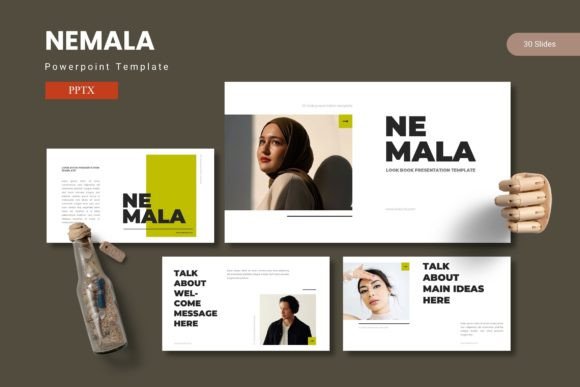
Nemala – A PowerPoint Template Built for Clarity
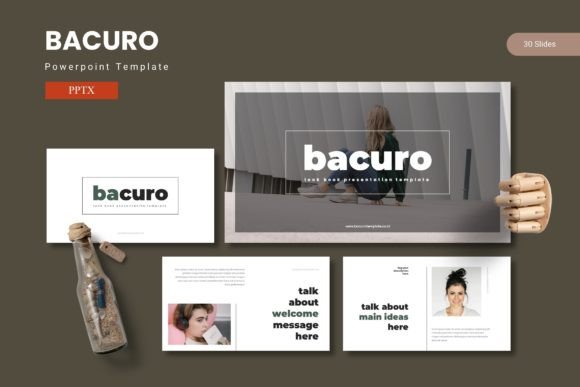
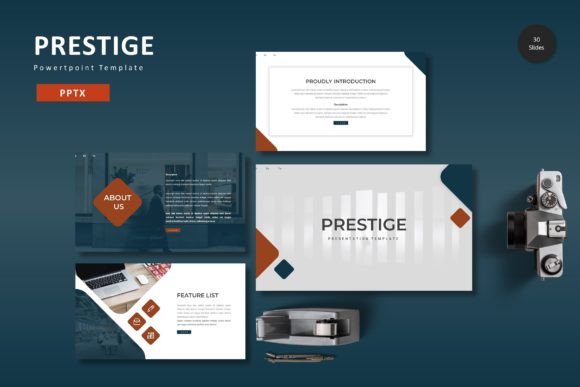
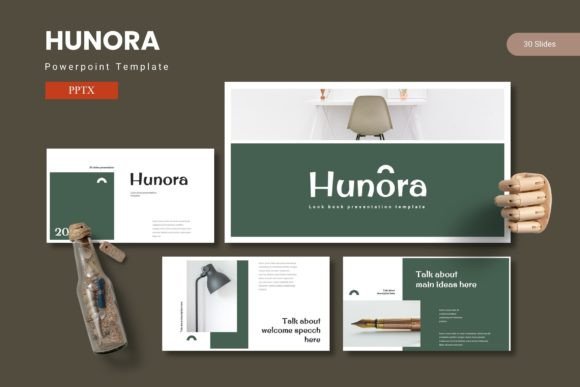
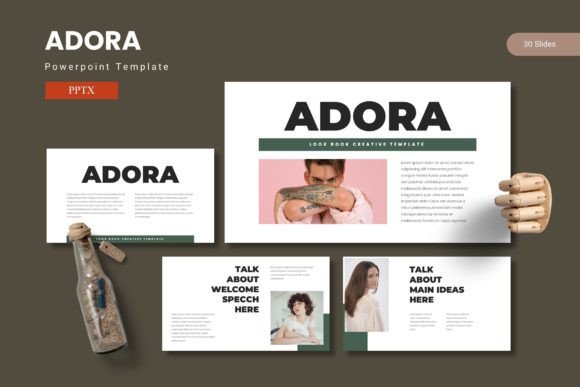
Presentations are rarely just about showing slides. They carry weight—a pitch that could land a client, a lesson that needs to stick, a report that must be understood in minutes. Yet many templates either overwhelm with clutter or underwhelm with bland layouts. Nemala - Powerpoint Template tries to strike a different balance. It comes with 150 slides spread across 5 premade color schemes, each set containing 30 slides. The structure is built on master slides, drag-and-drop picture placeholders, and pixel-perfect illustrations that remain editable. Whether you are a freelancer preparing a portfolio review or an educator designing a semester overview, the underlying question is the same: does this template help you communicate more clearly, without getting in the way?
Who Benefits from a Slide Library This Large
A collection of 150 slides sounds like a lot, and it is. But the value depends entirely on how you work. Beginners often worry about running out of slide types mid-presentation. Having section breaks, gallery pages, infographic spreads, and portfolio layouts means you can build a complete deck without scrambling to create missing pieces. For a small business owner, those 30 slides per color set can cover an entire company overview, product launch, and financial summary without repeating a single layout. More experienced users, on the other hand, may treat the library as a starting point—reordering, stripping down, or layering elements to match a specific brand voice. The master slide structure helps there: changes made to fonts, colors, or background treatments propagate through the deck quickly, so you are not editing 150 individual slides one by one.
Why 5 Color Variations Matter for Different Contexts
The template includes 5 premade color schemes, each applied consistently across its 30-slide set. For a marketer juggling multiple campaigns, this means you can assign a different color palette to each client deck without rebuilding from scratch. A creator or freelancer might use one color scheme for their personal brand portfolio and a second for a client project, keeping the visual identity distinct. The practical benefit here is speed—you don't need to manually adjust every accent color or worry about contrast ratios because the scheme is preapplied. That said, because all elements are editable, you are free to tweak individual colors if a client's brand requires a specific shade that isn't in the preset palette. The flexibility sits somewhere between a quick start and full customization, which suits both beginners who want things to look good immediately and advanced users who prefer to dig into the details.
Infographics and Data Visualization Without Design Skills
One of the features listed is handcrafted infographic slides built on master slides. For educators and trainers, this is often the deciding factor. Explaining a process flow, showing survey results, or comparing historical trends becomes much easier when the visual scaffolding is already in place. You drag in your data or text, and the infographic adapts. A hobbyist running a community workshop might not need complex data, but they might use a timeline graphic to outline an event schedule or a comparison slide to show before-and-after results. For a business professional, those same infographic slides can present quarterly metrics without requiring external charting tools. The pixel-perfect illustrations also mean that even if you resize an element repeatedly, it won't degrade or look pixelated on large screens. That reliability matters when you are projecting in a conference room or sharing slides via PDF where crispness is expected.
Picture Placeholders and Drag-Drop Simplicity
Picture placeholders are one of those features that sound minor until you have spent twenty minutes aligning images manually. Nemala - Powerpoint Template uses placeholders that accept drag-and-drop images. This is particularly useful for creators and publishers who regularly swap out visuals for different presentations. You can drop a product photo, a team headshot, or a portfolio screenshot into the placeholder, and it crops and positions itself within the existing slide layout. The gallery and portfolio slides also use this system, so a photographer or designer can create a polished visual showcase without touching alignment tools. For a consumer or hobbyist putting together a family event slideshow, the same simplicity applies—just drop in pictures and the layout handles the rest. The learning curve here is close to zero, which makes the template approachable for someone who only opens PowerPoint a few times a year.
Balancing Ease of Use with Long-Term Flexibility
Beginners often prioritize ease of use above everything else. They want slides that look professional with minimal effort. Nemala delivers that through premade colors, consistent master slides, and ready-to-use infographics. But "easy" doesn't always mean "limited." The same master slide system that makes initial setup fast also allows for deep customization later. Experienced users can break the templates apart, change font pairings, adjust spacing, or insert custom graphics. The 150 slides provide enough variety that you are unlikely to feel constrained, even if you present regularly. For a consultant or entrepreneur who builds multiple decks per month, the template can serve as a reusable system rather than a one-time purchase. The contained folder structure—with five PPTX files, a readme, font details, and photo information—makes it straightforward to keep everything organized across projects.
What the File Package Actually Includes
Understanding what you get helps set expectations. The main files are 5 PPTX files, each based on one of the 5 color schemes, and each containing 30 slides. That totals 150 unique slides across the full set. There is also a readme file that explains font requirements and credits, plus a folder with photo information. The fonts themselves are not embedded in the PowerPoint files in most cases, so you will need to install them separately if they are not already on your system. The readme covers this, which is helpful for users who are less familiar with font handling. For professionals working under tight deadlines, checking the font list early can prevent last-minute formatting issues. The photo information folder is useful for anyone who needs to credit or locate the original images used in the demo slides—something that matters for publishers and bloggers who need to respect licensing.
Practical Examples Across Different User Types
To see whether Nemala fits your workflow, it helps to imagine a few scenarios. A freelancer building a client pitch could open one of the 30-slide color sets, pull the section break slides to separate proposal sections, use infographic slides for market data, and finish with a portfolio gallery slide showing past work. The entire deck could be assembled in under an hour. A teacher preparing a course module might use a different color scheme for each unit, ensuring students can visually distinguish topics. The drag-drop placeholders let them swap in diagrams or photos quickly between semesters. A small business owner presenting an annual review to stakeholders could rely on the prebuilt data slides and timeline graphics, then use the editable illustrations to tweak the visual metaphor—changing a growth arrow into a custom icon that represents their industry. In each case, the template reduces formatting time and lets the content lead.
When Nemala Might Not Be the Right Fit
No template fits every situation. If you need highly specific layouts—like medical charts, architectural blueprints, or coding syntax slides—you might find the general-purpose slide library lacking in those niches. The template is designed for broad use: business, education, creative portfolios, marketing, and general presentations. Also, because the templates rely on master slides, users on older versions of PowerPoint may experience compatibility quirks with certain transitions or animations. The template is built for PowerPoint (the main files are PPTX), so if your workflow depends on Google Slides or Keynote, you would need to import and potentially adjust formatting. Checking the system requirements in the readme before purchasing can save time. For the majority of users within the standard PowerPoint ecosystem, the template works as described.
Is Nemala Worth Your Time
The decision comes down to how much you value a structured starting point. If you frequently build presentations and prefer to spend your energy on message rather than layout, the 150 slides and 5 color schemes provide a reliable foundation. Beginners get a safety net—the slides already look cohesive, so there is less risk of accidentally creating a mismatched deck. Experienced users get a tool they can reshape without starting from a blank slate. The inclusion of editable, pixel-perfect graphics means you are not locked into a fixed visual style. And the master slide setup means any global changes you need—like updating a company logo or switching to brand colors—apply across the entire deck instantly. For educators, creators, marketers, and professionals who need to present clearly and consistently, Nemala - Powerpoint Template offers a practical shortcut that doesn't cut corners on quality.